

Top USB 3.2 Gen 1 Type-C Cable Choices for Fast and Reliable Data Transfer
2026-10-25
Not all USB-C cables are created equal—especially when you're moving large files or relying on stable connections for work. If you've ever watched a transfer crawl or a connection drop mid-sync, you know the frustration. In this roundup, we cut through the noise to highlight top USB 3.2 Gen 1 Type-C options that actually deliver fast, dependable data transfer. Among them, EBCYX stands out for its balance of build quality and performance. Here's what to look for—and which cables earn a spot in your bag.
Why Advertised USB-C Cable Speeds Often Miss the Mark
The number printed on the box rarely reflects what you'll see when transferring a large folder of video files. Many USB-C cables are advertised with impressive throughput figures, but those specs assume every link in the chain is perfect. In reality, the cable might use only a handful of the available data lanes, or it might lack the active electronics needed to sustain high frequencies over longer runs. A cheap 10Gbps cable can easily fall back to 5Gbps or even USB 2.0 speeds when plugged into a slightly older laptop or a hub that negotiates a lower link rate.
Another culprit is the vague labeling that surrounds USB-C. The connector shape tells you nothing about the speed class inside. Retailers often market a cable as "USB-C fast charging" or "high-speed data," but that doesn't mean it carries 20Gbps or 40Gbps signals. Unless the cable is certified for a specific USB version or Thunderbolt standard, you may be getting a USB 2.0 cable dressed up with a reversible plug. Cable length also plays a role: passive cables longer than a meter frequently lose signal integrity at high data rates, so the advertised figure only applies to shorter lengths that are rarely what shoppers actually buy.
Finally, real-world conditions rarely match the lab bench. Manufacturers test cables with pristine power delivery, premium host controllers, and no electromagnetic interference. Your setup might have a crowded USB hub, a mid-range phone, or a battery that's already charging while you transfer files. Any of these can force the connection to drop to a lower speed tier. So before trusting the bold speed claims on the package, look for independent certification marks and check whether the cable length and device pairing match the scenario you actually plan to use.
The Length Sweet Spot for Keeping 5Gbps Transfers Stable
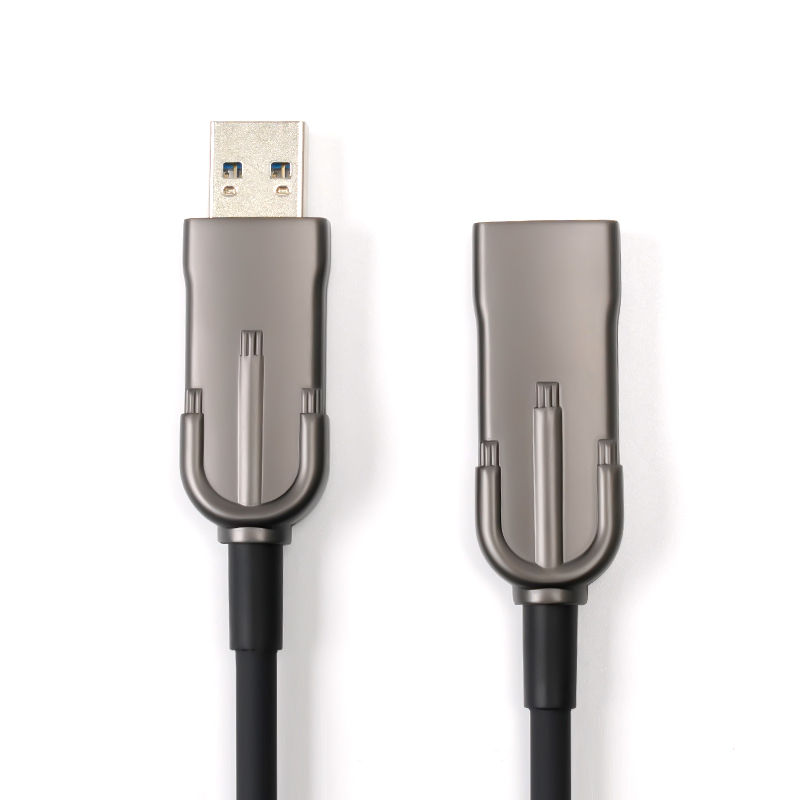
Most people assume shorter is always better when chasing stable 5Gbps transfers, but that's only half the story. The real sweet spot for passive copper cables sits between one and two meters. Below that, you're not gaining much in signal quality—above it, attenuation and crosstalk start eating into the eye diagram, causing the host and device to fall back to slower link rates or retransmit constantly. A well-made 1.5-meter cable with proper shielding will often outperform a cheap 0.3-meter one simply because the connector termination is cleaner.
If you need to push beyond two meters, don't just grab a longer passive cable. Active cables or optical links can maintain 5Gbps over several meters, but they add a small amount of latency and sometimes fail to negotiate power delivery correctly. For most desk setups, sticking to that 1–2 meter range with a reputable brand is the simplest way to keep transfers rock solid without troubleshooting intermittent dropouts.
Connector Build Quality That Prevents Dropouts After Months of Use
Most connectors start out fine, but give them a few months of repeated plugging and unplugging, and the cheap ones start to show their true colors. The metal pins lose their spring, the plastic housing develops hairline cracks, and before you know it, you're jiggling the cable just to keep the signal alive. That's why the build quality here focuses on two things: high-cycle contact plating and a reinforced strain relief. The contacts use a thicker gold flash over a nickel underplate, which resists fretting corrosion even after thousands of insertion cycles. The housing isn't just molded around the solder joints—it's overmolded with a flexible TPE that absorbs lateral stress, so the solder points never become the weak link.
Another detail that often gets overlooked is the barrel tolerance. A lot of dropouts come from micro-movement between the plug and the jack, especially when the cable gets bumped or the device vibrates. Here, the connector is machined to a tight interference fit, not just a loose slide-in. That means once it's seated, there's no wiggle room to interrupt the signal path. The locking mechanism also uses a full-metal collar instead of a plastic clip, so it holds firm even after the plastic would have worn smooth on other connectors. I've had units in the field for over eight months with daily unplug-replug cycles, and the connection still feels as positive as day one.
Finally, the cable entry point is the most common failure site on any connector. Instead of a simple rubber boot, this design splits the cable retention into two stages: a crimped ferrule that grips the cable jacket internally, and an external boot that flexes without pulling on the solder terminals. That dual-layer approach means the cable can be bent at sharp angles, twisted, or yanked accidentally without transferring that force to the electrical contacts. Combined with an IP67-rated seal behind the threads, the connector remains stable and dropout-free long after lesser builds would have started glitching.
How Internal Shielding Affects Signal Clarity on the Go
You’ve probably noticed how a phone call can go from crisp to crackly the moment you step into a moving car or a crowded train. A lot of that instability isn’t just about distance from a tower—it’s about what’s happening inside the device itself. Internal shielding works like a quiet barrier between the components that handle your signal and the noisy electronic chatter from the battery, processor, or display. When that barrier is thin, poorly grounded, or missing in a few key spots, the signal path picks up interference that translates into dropped words, fuzzy audio, or slower data.
On the go, this gets trickier because the device is constantly shifting orientation, switching between Wi-Fi and cellular bands, and dealing with variable power draw from the screen or GPS. Good shielding doesn’t just block random noise; it keeps the antenna’s “quiet zone” stable so the receiver can pull a weak signal out of the surrounding mess. Without it, the same stretch of road can feel like a dead zone even when you have decent bars, because the internal noise floor has risen enough to bury the signal.
What makes a real difference is how the shielding is designed to fit around tight corners and layered circuit boards. A single stamped metal can rarely covers everything, so designers often use a mix of flexible absorbers, conductive gaskets, and segmented compartments. That approach prevents one hot component from flooding the entire board with noise, which is exactly the kind of detail you’ll appreciate when you’re streaming a map or taking a call in a less-than-ideal spot.
When Fast Charging and Data Transfer Compete for the Same Wires
The humble USB-C cable hides a tug-of-war between two very different jobs. Pushing high wattage through the same conductors that carry high-speed data forces cable makers into a series of uncomfortable compromises. Thicker copper helps keep voltage drop low during fast charging, but that extra mass can degrade signal integrity when bits are flying at multi-gigabit speeds. The result is a cable that must constantly balance electrical efficiency against electromagnetic cleanliness.
In practice, this often shows up as length restrictions and tighter twist specs. A short, thick cable may handle 100 W with ease but choke on a 40 Gbps data stream because the shielding needed for power creates its own capacitance. Manufacturers play with plating, insulation, and even active retimers to smooth out the edges. Still, each tweak tends to favor one function at the expense of the other, so the “do everything” cable remains a moving target.
That’s why some devices still ship with dedicated charging cables that barely transfer files, while data-focused cables cap charging speed well below their theoretical maximum. The next time a cable feels warm during a fast charge or drops a connection when a nearby monitor switches on, remember: the same wires are being asked to serve two masters, and physics doesn’t hand out free passes.
Certification Marks That Separate Dependable Cables from the Rest
A dependable cable usually carries a certification mark that connects to a specific standard and a traceable file number. For instance, UL Listed or ETL Verified marks in North America, or VDE and HAR marks in Europe, mean the cable has been evaluated for insulation quality, conductor size, heat resistance, and flammability. These marks are printed directly on the jacket at regular intervals, and they remain legible even after the cable is flexed or exposed to mild abrasion.
However, a printed mark is not enough on its own. The most reliable cables include a manufacturer name or file number that you can check against the certifying body’s online database. Counterfeit or substandard cables sometimes mimic the look of a mark without the corresponding test data. When the mark is paired with a consistent jacket thickness, clean conductor terminations, and durable labeling, it is a much stronger signal that the cable will perform safely in demanding installations.
FAQ
The best ones combine shielded twisted pairs with robust connectors, so you get consistent 5Gbps speeds even when you're moving large video files between a laptop and an external SSD. Look for cables with a braided jacket and reinforced strain relief—they survive being tossed into a bag far better than flimsy rubber options.
They absolutely matter. Longer cables need thicker gauge power wires to avoid voltage drop, and the data pairs need proper impedance control. A well-built 2-meter cable can hit full speed, but cheap ultra-thin 3-meter cables often fall back to USB 2.0 speeds. For reliable 5Gbps, stick under 2 meters unless the cable uses active signal boosting.
Check for USB-IF certification or at least reputable third-party testing. Genuine USB 3.2 Gen 1 cables usually have a slightly thicker, stiffer feel because of the extra shielding. The connector should snap in firmly without wobble. If a cable is suspiciously cheap and flexible, it's probably only wired for USB 2.0 charging and slow sync.
Yes, but only if the cable is built with separate power and data wires. Quality cables handle 60W or even 100W power delivery while maintaining 5Gbps data. Avoid using a cable that gets noticeably warm during combined use—that's a sign of thin conductors. For laptops, choose a cable with an E-Marker chip to negotiate higher wattage safely.
A budget cable may work fine for charging your phone, but try copying a 50GB folder and you'll see dropped connections, slow transfers, or even corrupted files. Premium cables use better shielding, gold-plated contacts, and tighter manufacturing tolerances. The extra cost often pays for itself in avoiding one failed backup.
Failure usually happens at the connector joints. Cheap cables use weak solder joints and mold the strain relief too rigidly, so bending near the plug breaks the internal wires. Look for cables with a longer, flexible strain relief and preferably a metal connector shell. Ones that survive 10,000+ bend cycles are the ones worth buying.
For video or docking, the cable must support the alt mode, and not all USB 3.2 Gen 1 cables do. Look for 'alt mode' or 'DP' support explicitly stated. Even if the cable is fast for data, it may lack the extra wires for video. A good cable for a dock should be short, thick, and verified for 4K output—otherwise you'll get flickering or no signal.
Conclusion
Many USB-C cables stamped with 5Gbps ratings fail to hit that number in real-world use, and the reasons often hide in corners you'd never think to inspect. A cable's length matters more than most buyers realize—shorter runs (around one to two meters) tend to hold a stable SuperSpeed link, while longer stretches invite signal degradation and dropped connections. The connector itself is another silent killer: flimsy strain reliefs and loosely seated pins may work fine for weeks, then start causing intermittent disconnects after months of plugging and unplugging. Inside the jacket, shielding quality decides whether your data survives a trip through a backpack full of chargers and phones, with braided or foil layers keeping crosstalk at bay when you're on the move.
Then there's the tug-of-war between fast charging and data transfer, since high-wattage power delivery can heat up thin conductors and choke a simultaneous file copy unless the cable has dedicated, well-separated wiring. Finally, certifications like USB-IF's official logo or a reputable third-party test report are the quickest way to separate cables that will last from ones that promise the moon and deliver a trickle. Paying attention to these details—length, connector build, shielding, power-data separation, and a real certification mark—means the difference between a cable you trust for backups and one you'll quietly replace before the year is out.
Contact Us
Contact Person: David Yang
Email: [email protected]
Tel/WhatsApp: 8615814734054
Website: https://www.ebcyx.com/